Photo guide
Photo to zombie video: choose photos that work
Prepare your photos for a photo to zombie video. Check sizes, compare portrait crops, assign the two roles, and review privacy before creating your story.
Last updated: 2026-10-25
A photo to zombie video starts with two readable references, even when the finished scene looks dark and chaotic. The zombie couple AI video generator creates new footage from your photos; it does not apply a live filter to an existing clip. Give each character a clear identity before deciding how the story should look.
Use photos you own, or obtain permission from every person pictured. Keep private details out of the background when choosing a source: a house number, work badge or document rarely helps a portrait reference. Choose a different image if using it would make the person uncomfortable.
Which photos work best for a photo to zombie video?
Start with a recent head-and-shoulders portrait, soft light and an unobstructed face. Both eyes, the outline of the face and the hairline should be easy to distinguish. A neutral expression or a small smile gives the model a readable reference without asking it to interpret an exaggerated pose.
Avoid sunglasses, hands across the face, heavy beauty filters and text over the eyes. A busy room matters less than a face hidden in shadow, but a simple background makes the important details easier to inspect. Check the image at its actual size rather than trusting a tiny phone thumbnail.
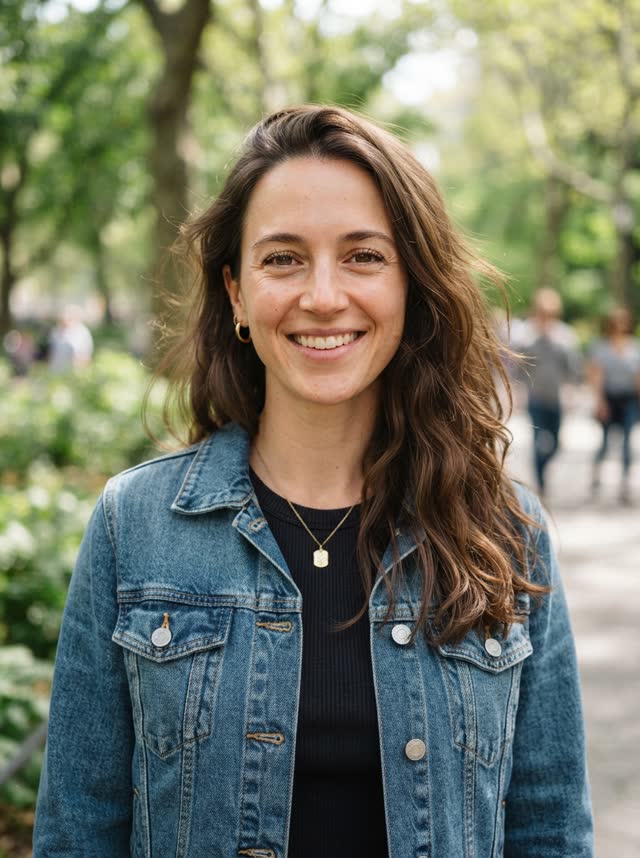
Features remain readable, with space around the face.
Choose another source rather than expecting the model to restore missing features.
Check the file before you start
The upload checks file contents as well as the filename. JPEG, PNG and WebP are accepted, with a maximum of 10 MiB per photo and 20 MiB for the two photos together. A screenshot with a changed extension can still fail the file check.
Both sides of the image must be greater than 300 pixels and less than 6000 pixels. That means 301–5999 pixels per side; a 300-pixel edge is outside the accepted range. The width divided by height must be greater than 0.4 and less than 2.5, so very narrow strips and wide panoramas need a different crop.
| Check | Accepted input | Useful preparation |
|---|---|---|
| File type | JPEG, PNG or WebP | Export the image properly; do not just rename it. |
| File size | Up to 10 MiB each; 20 MiB combined | Reduce file size while keeping the face readable. |
| Dimensions | 301–5999 pixels on each side | Prefer at least 480 pixels on each side for a clearer reference. |
| Shape | Width ÷ height above 0.4 and below 2.5 | Keep a portrait crop, with room around the head. |
The studio may flag a small image even when it meets the minimum upload dimensions. Passing a size check only confirms that the file can be accepted; it is not a quality score. Upscaling a blurred thumbnail does not recover the missing facial information.
How do you crop a shared photo into two references?
Open the first slot and select the shared photo, then crop around the survivor. Select the same original for the second slot and crop around the other character. Keep each crop wide enough to preserve a full face instead of isolating an eye or a mouth.
- Find a photo where the two faces do not overlap.
- Crop one person at a time, including the head and some shoulders.
- Inspect each preview for softness, clipped hair and missing facial edges.
- Replace a weak crop with a separate portrait when necessary.
A large group photograph is usually a poor substitute for two usable portraits. Cropping does not increase the amount of detail captured in the original, and the studio does not have a group-cast mode. A source containing several people still has to become two clear individual references.
A readable face with shoulders gives the reference context.
Moving closer can cut off the hairline and remove useful facial context.
Assign the roles before reviewing your story
Photo 1, on the left, is the survivor. Photo 2, on the right, is the infected character; use the center swap control if you want to reverse those assignments. These are story roles, and their positions on screen can change as the camera cuts.
For a pet reunion, the owner belongs in the first slot and the animal in the second. The zombie dog video guide shows the supported owner-and-pet arrangement. For people, the relationship selector changes the story direction without adding more reference slots.
Choose your format before creating the video. A tall source photograph does not force the finished video to be vertical, and a wide source does not automatically make it landscape. If mobile posting is the goal, the zombie couple TikTok video guide explains the 9:16 choice.
What happens to your photos after selection?
Selection and cropping happen on your device. An unfinished draft can retain selected photos locally so you can return after checkout; that draft expires after 24 hours and is removed on your next visit. Starting a video, signing out or switching accounts clears the draft, and a clear-draft control is available in the studio.
When you confirm creation, your two portraits are uploaded to private storage and sent to Kie.ai with the story settings. ZombieVideo's private photo copies expire after 24 hours: access stops at expiry and physical deletion follows the cleanup process. This does not erase a copy already retrieved by the provider.
Provider retention is a separate matter. Kie publishes a 14-day generated-media period and a two-month text/metadata log period, without defining one deadline for every input-processing copy or backup. The Privacy Policy explains that distinction and how to request deletion; do not assume a seven-day deletion promise applies here.
Photo to zombie video: a final preparation check
Give the final previews a slow inspection before buying more credits or confirming a render. Compare the actual selected faces with the intended roles, then check quality and format together. An incorrect role assignment can be corrected before creation without paying for a replacement video.
| Decision | Prepared in ZombieVideo | Starting with a blank prompt |
|---|---|---|
| Getting started | Two reference slots and a crop preview | Define how references should identify each character. |
| Story direction | Survivor, infected character and a reunion sequence | Write the character roles and the sequence yourself. |
| Control | Pick relationship, scene, memory and tone | Specify the desired controls in the prompt. |
| Format | Choose 9:16 or 16:9 before review | Check the generator settings separately. |
| Ending | A warm-memory direction is already part of the story | Describe how the final scene should resolve. |
A good pair of references reduces avoidable ambiguity, but the render still involves creative variation. Look at the displayed credit cost, read the creation confirmation and keep a copy of the source photos you chose. Once your photo to zombie video is ready, review its faces, contact moment and ending before downloading a version to keep.
Questions before you create
Can I make a photo to zombie video from a couple selfie?
Yes, if you can crop the selfie into two separate, usable portraits. The studio has two reference slots, one per character. Each crop still needs a clear face and enough detail. If one person is tiny, partly hidden or blurred, use a different source photo for that person.
Does an AI zombie generator need zombie makeup in the source photo?
No. Begin with a clear, ordinary reference photo. The story request supplies the fictional zombie appearance for the infected character. Heavy makeup, novelty lenses and strong beauty effects can hide the features the model needs. Do not deliberately damage image quality to make a portrait look frightening.
Will the people in my photos look exactly the same in every shot?
Exact likeness is not guaranteed. The photos guide a newly generated sequence, and faces, hands, clothing and motion can change between shots. Choose references that are easy to recognize and review the entire result before sharing. A clearer portrait helps communicate identity; it does not guarantee a particular result.
Can I upload a HEIC photo from my phone?
The studio accepts JPEG, PNG and WebP files. Export or convert a HEIC image to one of those formats before selecting it, then check the resulting file size and dimensions. Renaming a file extension does not convert its contents. Use a copy so you can keep your original photo.
Does preparing my photos use credits?
Selecting photos, adjusting a crop and planning the story do not create a paid video. Credits are used when you confirm creation after review. Standard costs 10 credits and Cinema HD costs 22 credits for the current 15-second workflow. Check the review screen before confirming, especially after changing quality.
Are my photos automatically published with the example videos?
Your uploads are separate from the public gallery and are not automatically added to it. Local drafts, private uploaded copies and files retrieved by the processing provider have different retention rules. Read the privacy section before uploading, especially when using a shared device or a portrait belonging to another person.